A closer look at post-it note cards, notes, MiniSheets, tags, templates, themes, focus mode, global to-dos, settings and the Bin.
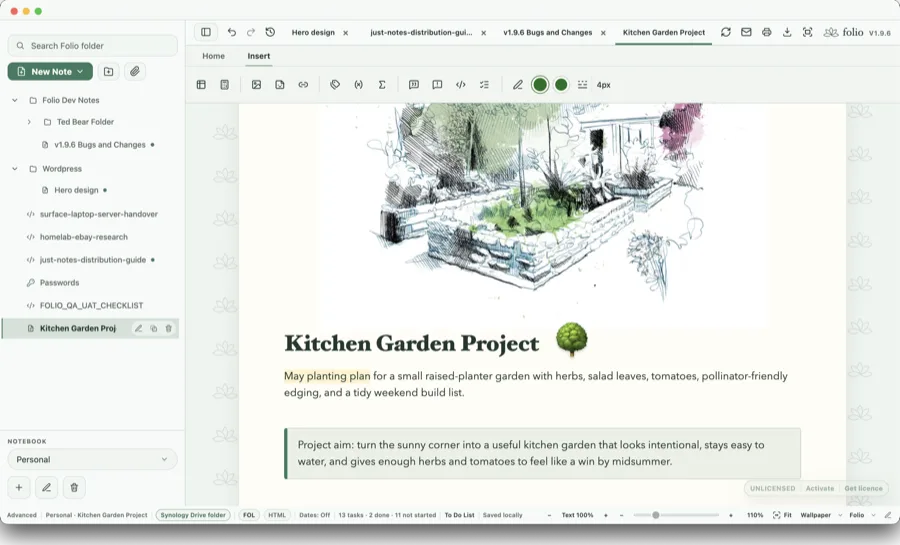
Click screenshot to enlarge.
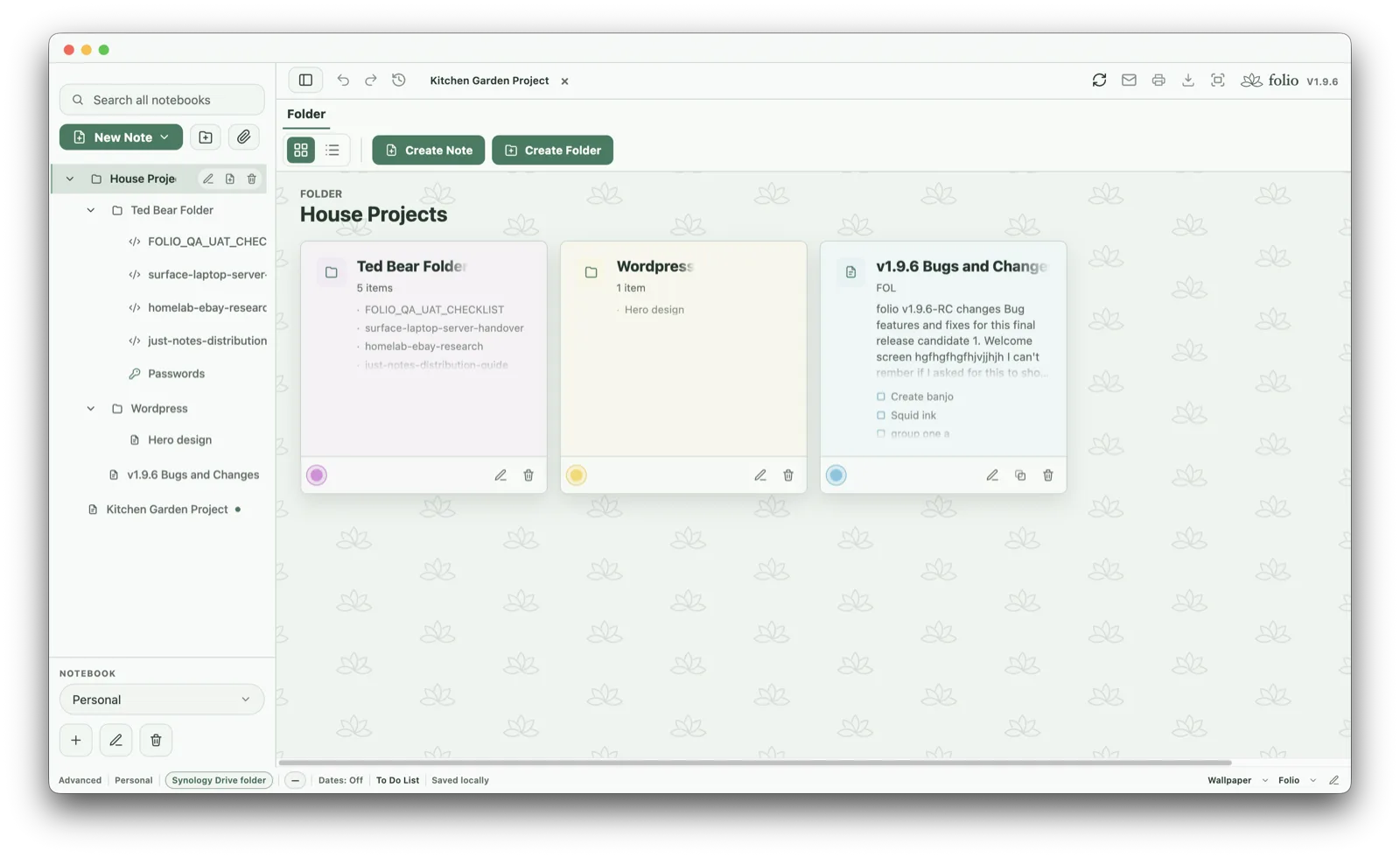
Post-it card view
Browse folders and notes as visual cards.
Switch from a list to a softer card view when you want to scan projects visually. Folders can gently preview what is inside, notes can show a little of their content, and colour markers make important areas easier to recognise.
Preview folder contents without opening every folder.
See note snippets and to-do items at a glance.
Use colour markers to give projects a familiar visual identity.
Click screenshot to enlarge.
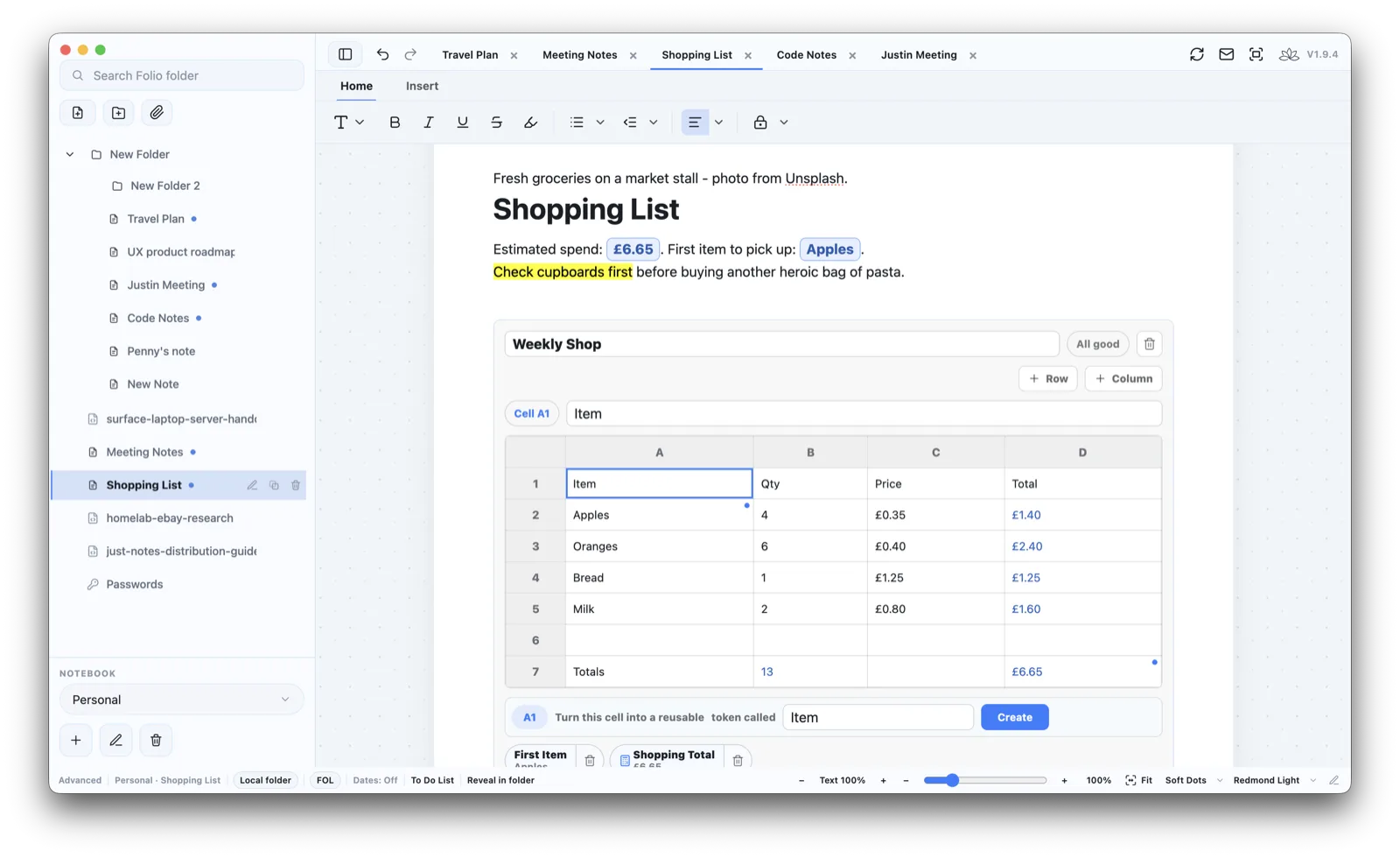
MiniSheets and tokens
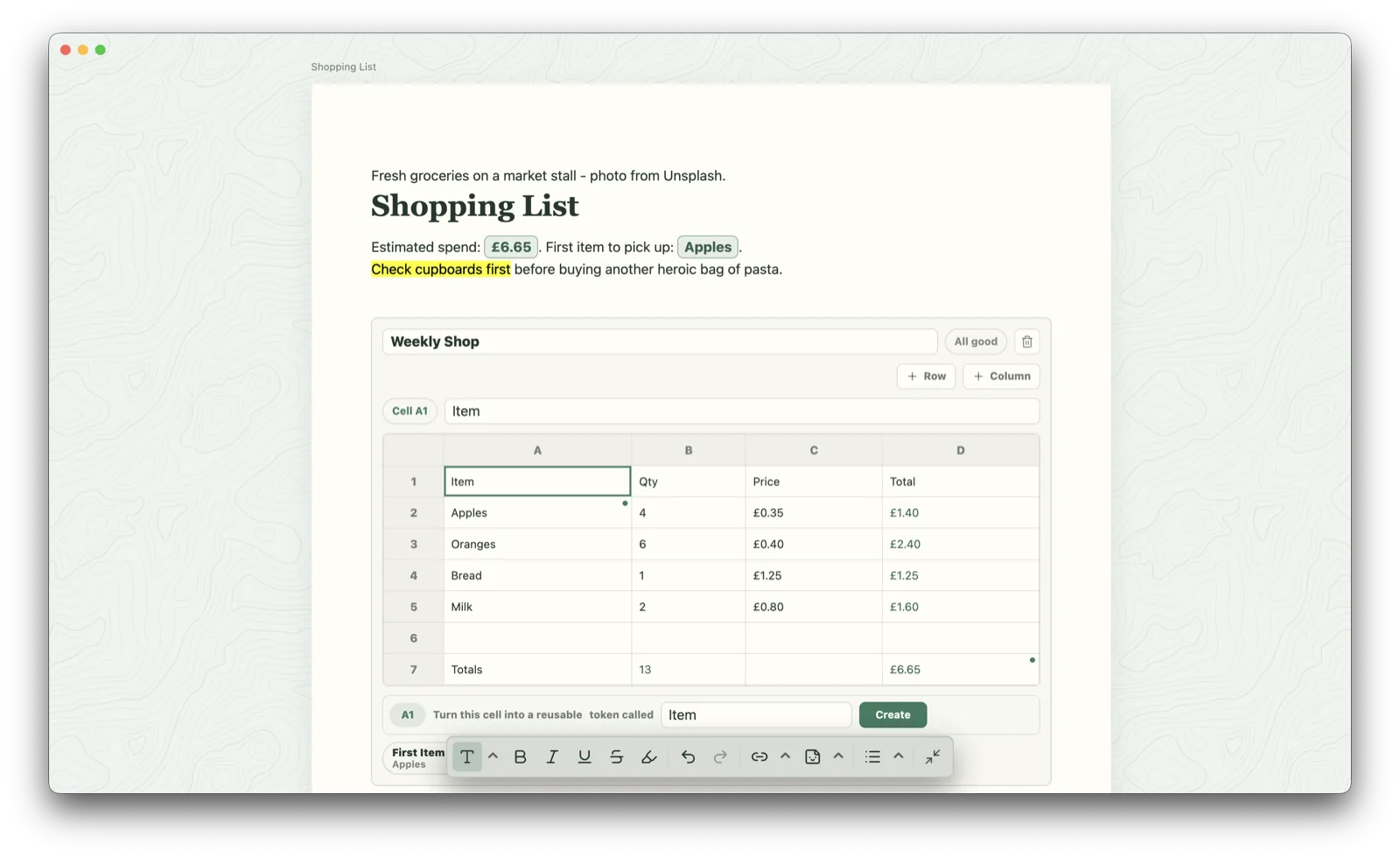
Lightweight calculations inside real notes.
Folio notes can hold more than paragraphs. MiniSheets let you keep small working tables directly in the note, then turn useful cells into reusable live tokens for the writing above or below.
Great for shopping totals, budgets, gym logs, sports scores and project tracking.
Tokens keep important values visible without opening a separate spreadsheet.
Rich text, highlights and links sit naturally around the data.
Click screenshot to enlarge.
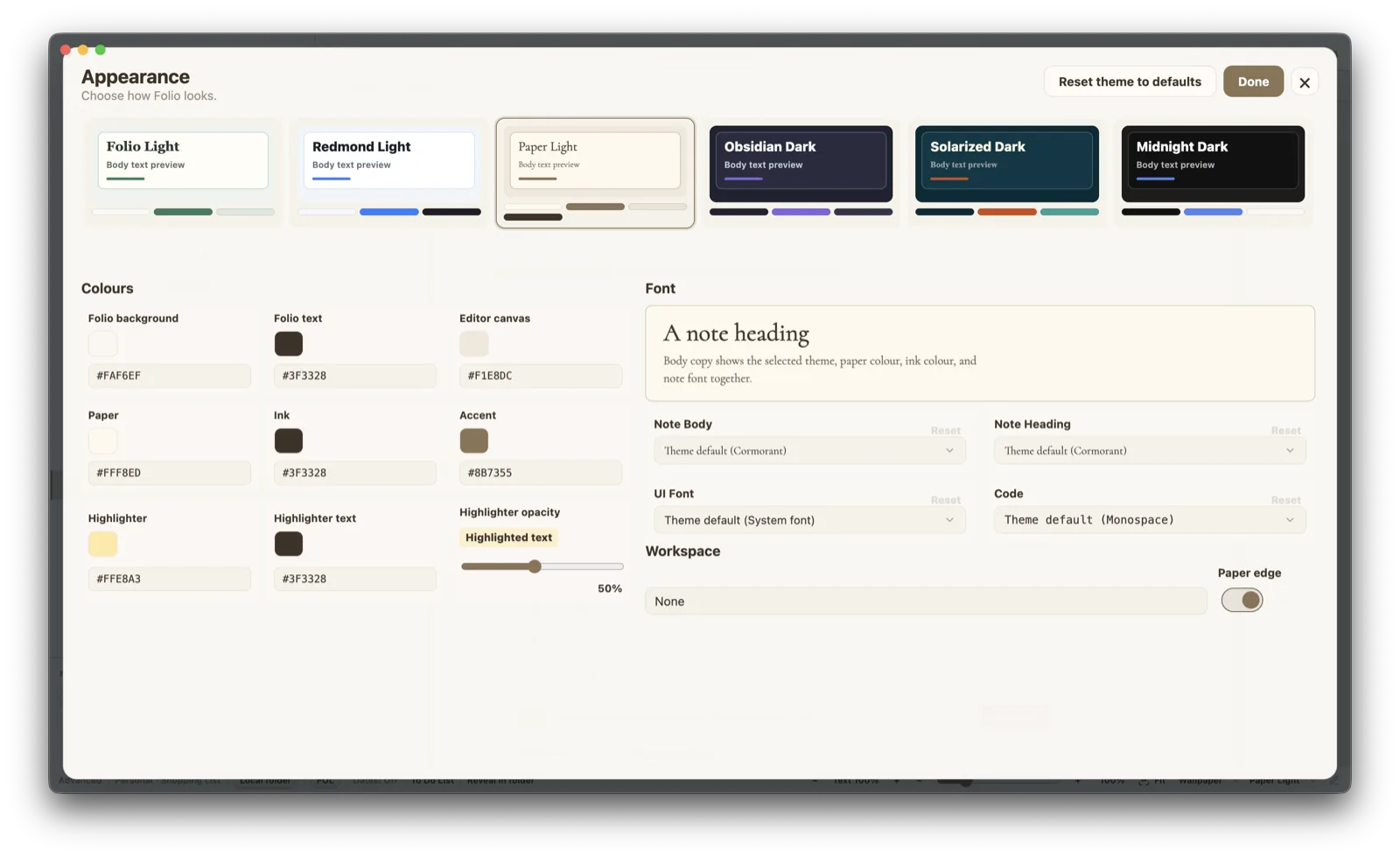
Appearance
Themes that make the app feel like yours.
Choose from clean light themes, rich dark themes, paper styles, workspace wallpapers, font settings and highlighter colours. Folio is built for long writing sessions, not one fixed look.
Switch between Folio Light, Redmond Light, Paper Light, Obsidian, Solarized and Midnight Dark.
Adjust fonts, paper edge and highlight opacity.
Keep the interface quiet while making notes feel personal.
Click screenshot to enlarge.
Templates and rich notes
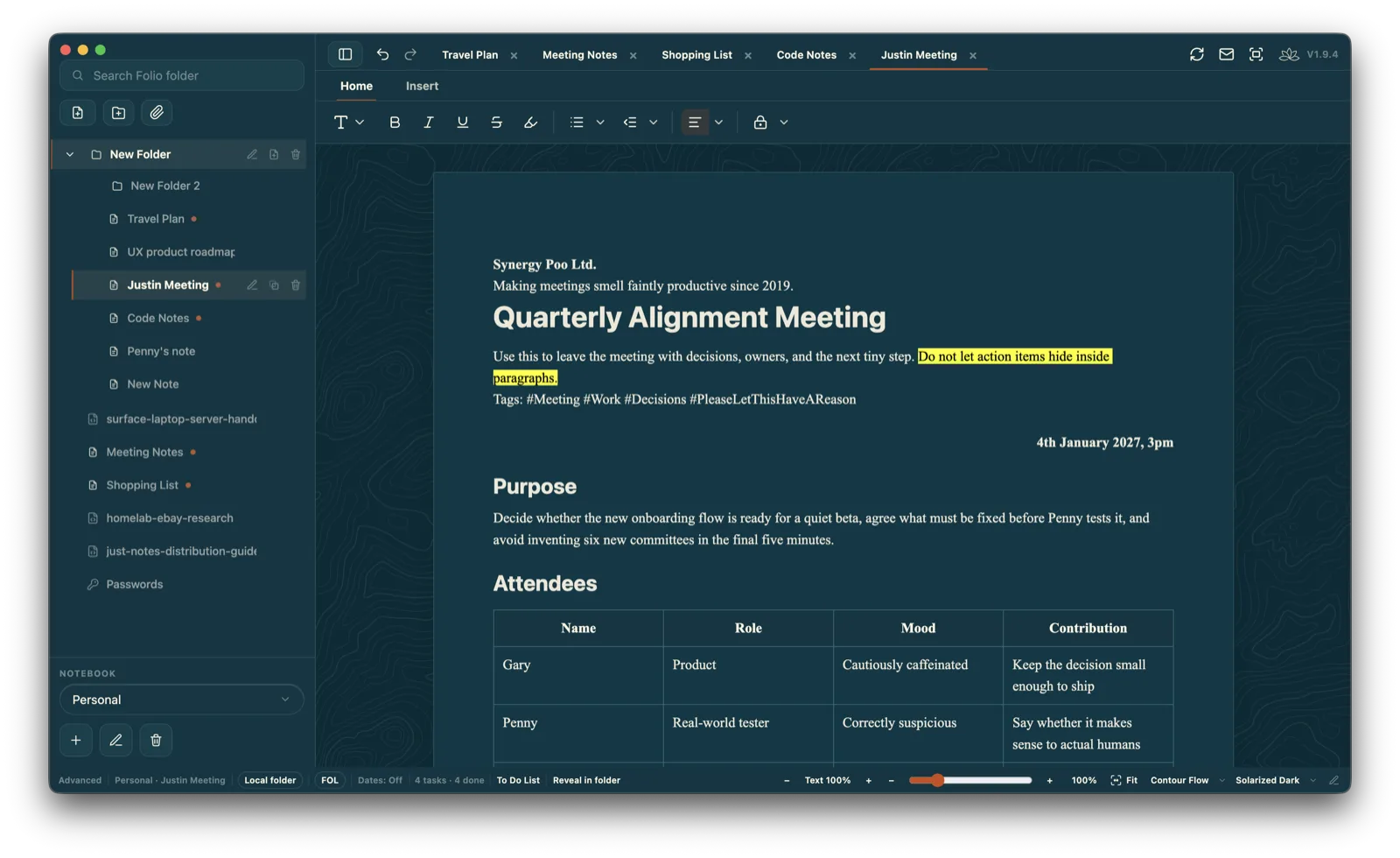
Meeting notes with decisions, tables and personality.
Templates can give a note a useful starting shape, but everything remains editable. Use headings, tables, highlights, tags, bullets, checklists and internal links to capture what actually happened.
Start faster with meeting, shopping, travel, gym, recipe and project templates.
Use tags to group notes across folders.
Keep action items visible instead of buried in paragraphs.
Click screenshot to enlarge.
Tags
Find notes by meaning, not just folder.
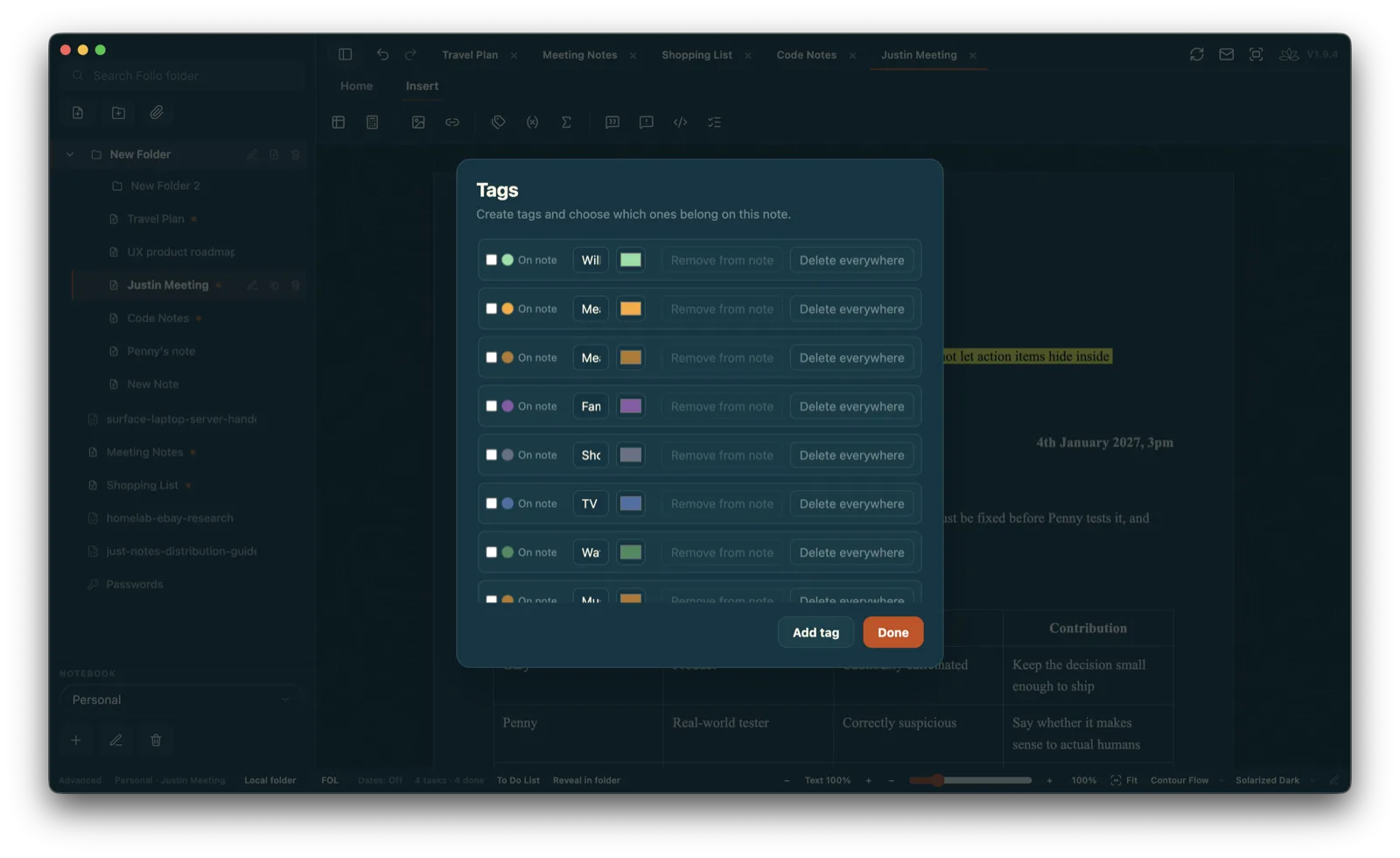
Folders are useful, but real life crosses folders. Tags let you mark notes by topic, person, urgency, theme or project, with colours that fit the current theme.
Create and colour tags from inside the editor.
Apply tags to the current note without moving files around.
Use tags alongside notebooks, folders and full-text search.
Click screenshot to enlarge.
Focus mode
Hide the busy bits when you want to write.
Focus mode clears the surrounding interface so the note becomes the room. It is still Folio, still local-first, just with fewer things tugging at your attention.
A cleaner reading and writing view for longer notes.
Keeps wallpaper and paper styling without the full toolbar.
Useful for recipes, planning, study notes and careful editing.
Click screenshot to enlarge.
Global to-dos
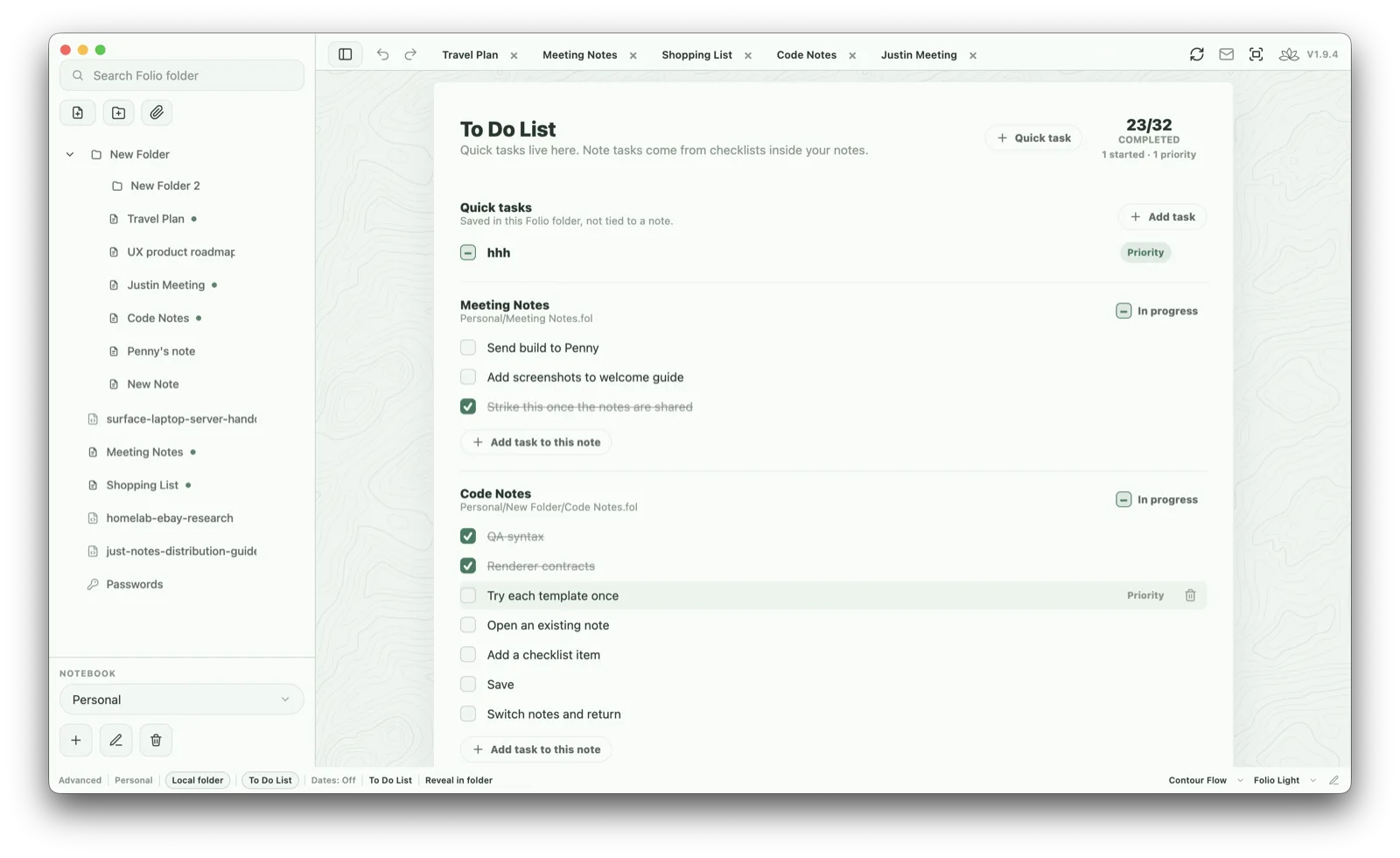
Tasks collected from across your notes.
Folio can gather checklist items from notes into one to-do view, while also supporting quick tasks that live at the Folio folder level rather than inside a particular note.
See note tasks and quick tasks together.
Jump back to the note where a task belongs.
Track done, started and priority tasks without turning Folio into a project-management monster.
Click screenshot to enlarge.
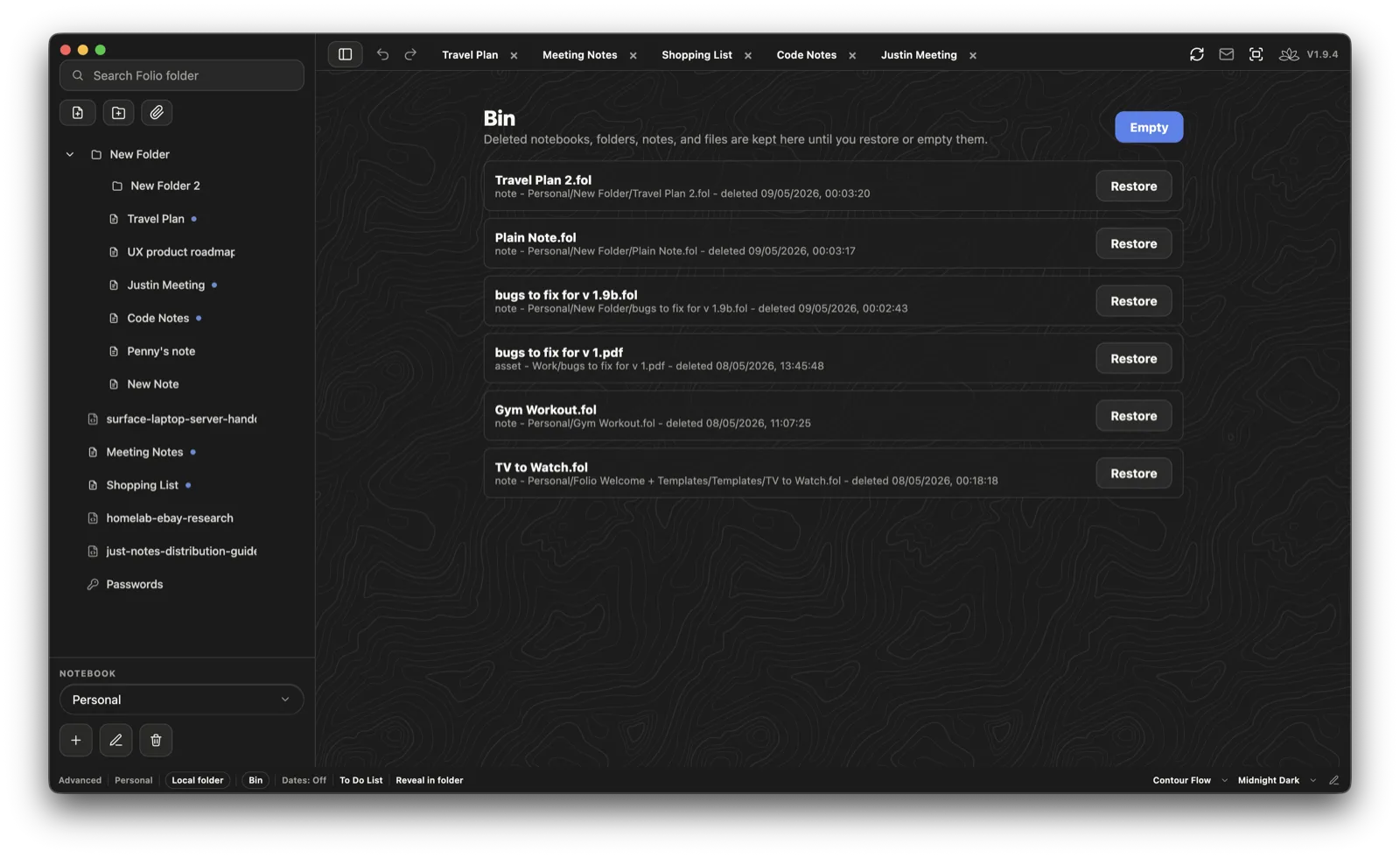
Bin and restore
Deleted does not have to mean gone immediately.
The Bin gives you a place to review deleted notes, folders and files before emptying them. It is a simple safety net for real-file notebooks.
Restore accidentally deleted notes and files.
See where the item came from and when it was deleted.
Empty the bin when you are ready.
Click screenshot to enlarge.
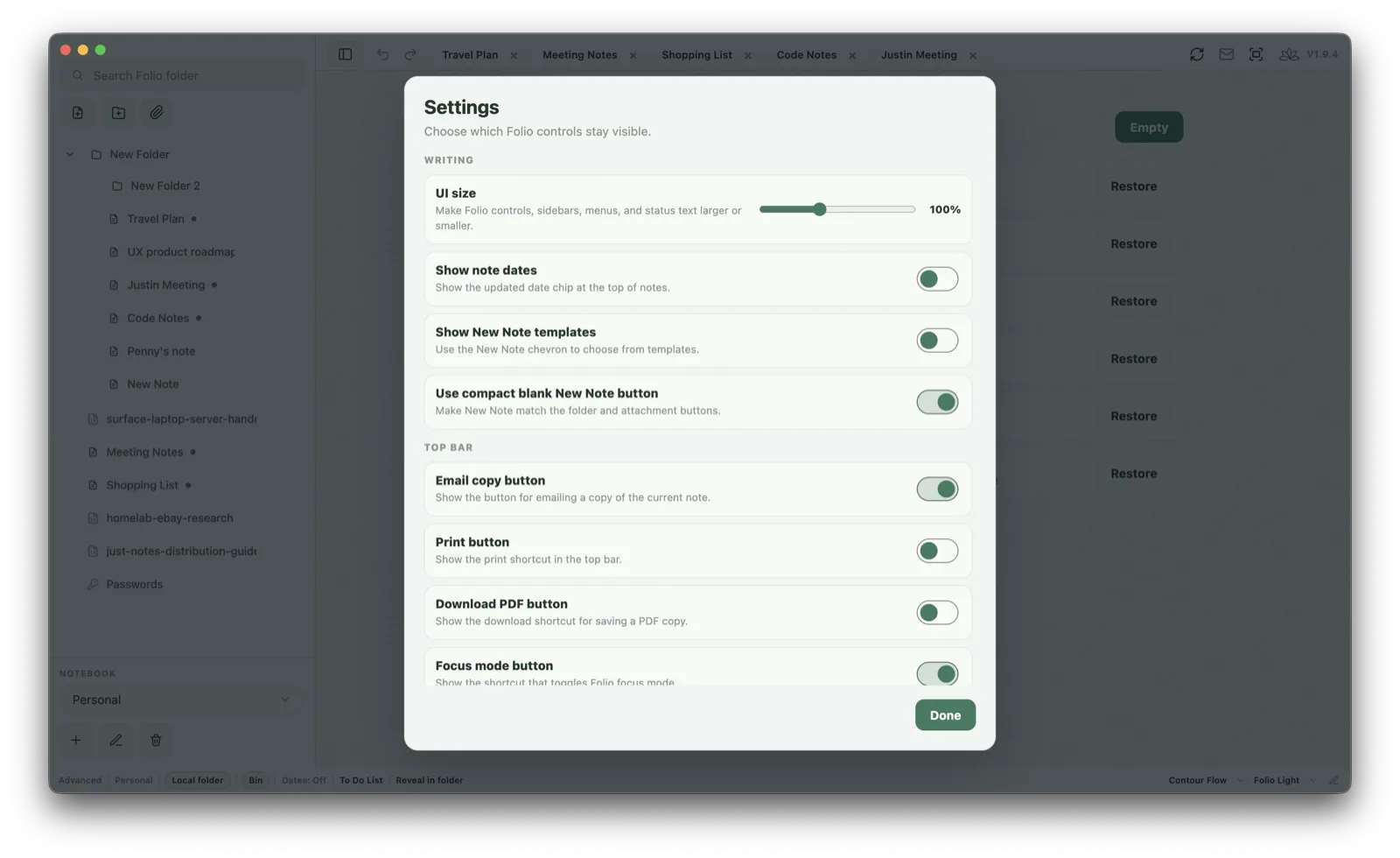
Settings
Show the controls you actually want.
Folio can be dense and capable, or quieter and simpler. Settings let you hide or show interface pieces, adjust UI size, and decide whether template menus, dates and toolbar buttons belong in your daily setup.
Scale the UI up or down.
Choose whether New Note shows templates or stays plain.
Hide or show top bar and status bar controls.
Privacy & ownership
Designed around your control.
LocalYour folder
A Folio library is a folder you choose. Inside it, notebooks, folders, notes, PDFs, images, Markdown and attachments stay as files you can understand.
ApprovedComfortable writing
Choose themes, fonts, wallpapers, scale and focus mode so the interface supports long writing sessions instead of shouting over them.
PrivateNo cloud account required
Folio stores notes locally. You decide whether a Folio folder is synced with Google Drive, Dropbox, OneDrive, iCloud Drive, backed up or kept offline.
ProtectedLocked notes
Password-protected Folio notes are encrypted locally. Keep the password safe, because Folio cannot recover a forgotten note password.
Support
Need help?
Questions about installing Folio, choosing a library folder, restoring notes or keeping your notes backed up are welcome.
Use the form and the request is saved privately on our Synology, with an email notification to Folio support. Add reply details only if you want us to get back to you.